---
title: Chess Web Programming: Part Five: Game Review
description: Creating a Game Review Application
image: https://image.lichess1.org/display?fmt=webp&h=550&op=thumbnail&path=hollowleaf:ublog:32JsEsrs:msURmib2.webp&w=880&sig=a55bff91f20d3ade6f3e0199c09f18b29281c6b2
---

Building chess web applications has been a fun and challenging journey, combining the strategies of chess with the world of web programming. Since starting this project, I’ve watched **[Chessboard Magic](https://chessboardmagic.com/)** grow from a simple app into a platform with 34 unique features that make learning and playing chess more interactive and enjoyable.
In my previous blogs, I’ve broken down the steps for anyone interested in building their own chess web app:

* **[Part One: Getting Started](https://lichess.org/@/HollowLeaf/blog/chess-web-programming-part-one-getting-started/8ZKpwJU8)** – We created a basic chessboard, allowing users to move pieces and setting up the foundation for managing game states and interactions.
* **[Part Two: Adding Stockfish](https://lichess.org/@/HollowLeaf/blog/chess-web-programming-part-two-stockfish/PdeOTODf)** – We integrated the Stockfish chess engine to analyze moves and provide insights, making the app engaging and interactive for users looking to deepen their understanding of chess.
* **[Part Three: Deploying Your Application](https://lichess.org/@/HollowLeaf/blog/chess-web-programming-part-three-deploying-your-application/J3GdsKZP)** – We covered how to deploy the app using GitHub Pages, allowing anyone to share their chessboard online. This part included setup instructions for Git, GitHub, and deployment configurations to make the app live.
* **[Part Four: Customization](https://lichess.org/@/HollowLeaf/blog/chess-web-programming-part-four-chessboard-customisation/Is0jxElj)** – We added customizations for the chessboard, allowing users to switch between different piece sets and board themes. These changes made the chessboard visually unique and gave users more control over their experience.

Each part offers straightforward steps and practical tips to help readers build and enhance their chess applications.
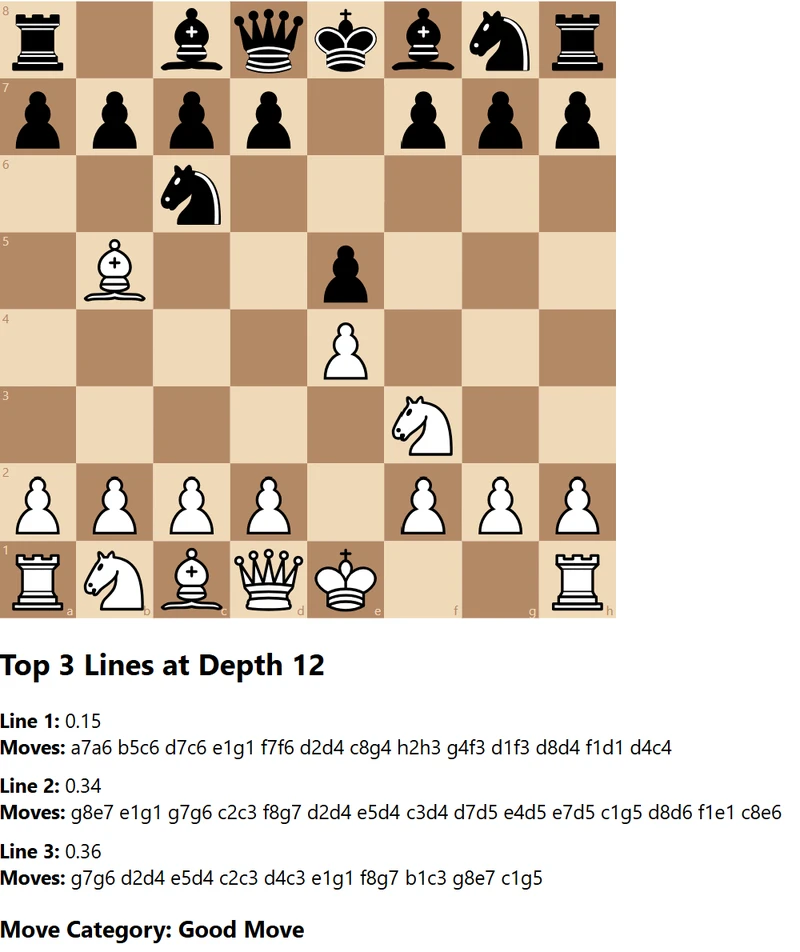
In this fifth part, **Game Review**, we’ll dive into building a game review feature by adding engine lines and a move categorization tool. This feature will assess the quality of each move, highlighting whether it was strong or weak, and providing players with insights to help them learn from each game.

## Setting Up the React Application

> **Note**: This guide assumes you’ve installed the necessary software and tools covered in the previous blogs, including Node.js, npm, and any preferred code editor like VSCode. If not, please refer to earlier parts of this series for guidance on installing these tools.

In this section, we’ll start by setting up our React application, which we’ll name **gamereview**. This will serve as the foundation for building our game review application, where we’ll add a move review feature to analyze chess games. Let’s get started!

#### **1\. Create the React Application**

First, we need to create our React project. Open your terminal and run the following command:

```
npx create-react-app gamereview
```

This will set up a basic React app with everything we need to get started.

#### **2\. Navigate to the Project Folder**

Once the setup is complete, navigate to the new project folder:

```
cd gamereview
```

#### **3\. Install Required Dependencies**

We’ll be using two main libraries to help us build the game review feature:

* **react-chessboard**: A React component for displaying an interactive chessboard.
* **chess.js**: A library that allows us to manage chess game logic, including move validation, piece movement, and move history.

To install these libraries, run the following command in the terminal:

```
npm install react-chessboard chess.js
```

#### **4\. Add the Folder to Your Workspace in VS Code**

* Open **Visual Studio Code**.
* Go to **File** \> **Add Folder to Workspace....**
* Select the `gamereview` folder you just created.
* This will add the project to your workspace, allowing you to view and edit all files within VS Code easily.

#### **5\. Verify the Installation**

After installing the dependencies, verify that they’re listed in your `package.json` file under dependencies. Your `package.json` should include the following:

```
{
  "dependencies": {
    "react": "^18.0.0",
    "react-dom": "^18.0.0",
    "react-scripts": "5.0.1",
    "react-chessboard": "^1.2.0",
    "chess.js": "^1.0.0"
  }
}
```

#### **6\. Create a Basic Chessboard Component in `App.js`**

Now, let’s set up a basic chessboard using `react-chessboard` and add an `onDrop` function to validate moves.

* **Open `App.js`**: In your project folder, open the `App.js` file. By default, it will contain some boilerplate code from the React setup. We’ll replace this with a simple chessboard setup.
* **Import Dependencies**: First, import the necessary components from `react-chessboard` and `chess.js` at the top of the file.

```
import React, { useState } from "react";
import { Chessboard } from "react-chessboard";
import Chess from "chess.js";
```

* **Set Up the Chessboard Component with `onDrop`**: Next, we’ll initialize a new `Chess` instance and set up an `onDrop` function to validate moves using a try-catch block. This function will try to make a move and catch any errors if the move is invalid.

```
// Main App component
const App = () => {
  // Initialize the game state using useState with a new Chess instance
  const [game, setGame] = useState(new Chess());

  // Function to handle piece movement on the chessboard
  const onDrop = (sourceSquare, targetSquare) => {
    // Create a copy of the current game state using FEN notation
    const gameCopy = new Chess(game.fen());

    try {
      // Attempt to make the move on the game copy
      const move = gameCopy.move({
        from: sourceSquare, // Starting square of the move
        to: targetSquare, // Target square of the move
        promotion: "q", // Always promote to a queen for simplicity
      });

      // If the move is invalid, move will be null, so we return false to ignore the move
      if (move === null) {
        return false;
      }

      // If the move is valid, update the game state with the new position
      setGame(gameCopy);
      return true; // Return true to indicate a valid move
    } catch (error) {
      // Catch and log any errors that occur during the move attempt
      console.error(error.message);
      return false; // Return false to ignore the invalid move
    }
  };

  return (
    <div>
      <h1>Game Review</h1>
      <Chessboard
        position={game.fen()} // Set the chessboard position to the current game state
        onPieceDrop={onDrop} // Trigger the onDrop function when a piece is moved
        boardWidth={500} // Set the width of the chessboard to 500px
      />
    </div>
  );
};

export default App; // Export the App component as the default export
```

**7\. Run the Application**
Now, go back to your terminal and start the React development server:

```
npm start
```

This command will open your application in the browser at `http://localhost:3000`. You should see a chessboard centered on the screen with a width of 500px. You can now drag and drop pieces, and the `onDrop` function will validate moves using `chess.js`. If a move is invalid, it will be prevented, and an error will be logged in the console.

> **Note**: The basics of setting up a React application with a chessboard component and validating moves were covered in depth in **Part One** of this series.

## Integrating Stockfish

In this section, we’ll integrate Stockfish, a powerful chess engine, into our React chessboard. Stockfish can evaluate each move and provide feedback on the top 3 recommended moves. This feature will allow users to see the best moves in each position, helping them improve their gameplay.
Let’s walk through each step to set up Stockfish.

#### 1\. Download Stockfish Lite

First, download `stockfish-16.1-lite-single.js` and `stockfish-16.1-lite-single.wasm` from the [Stockfish.js GitHub repository](https://github.com/nmrugg/stockfish.js/tree/master/src). These files contain a lightweight version of the Stockfish engine designed to work in web applications.

#### 2\. Add Stockfish Files to `public/js`

Once downloaded, create a `js` folder within the `public` directory of your React project. Copy `stockfish-16.1-lite-single.js` and `stockfish-16.1-lite-single.wasm` into `public/js`. Your project structure should now look like this:

```
gamereview
 public
    js
       stockfish-16.1-lite-single.js
       stockfish-16.1-lite-single.wasm
    index.html
 src
```

This setup will allow us to reference Stockfish directly from the `/js` folder within our React app.

#### 3\. Load Stockfish in `App.js`

To load Stockfish in our application, we’ll create a Web Worker for `stockfish-16.1-lite-single.js`. This allows Stockfish to run in a separate thread so it doesn’t slow down our main application.
Here’s the code to set up Stockfish in `App.js`:

```
const App = () => {
  const [stockfish, setStockfish] = useState(null);

  // Load Stockfish using useEffect when the component mounts
  useEffect(() => {
    // Create a new Web Worker for Stockfish
    const stockfishInstance = new Worker(`${process.env.PUBLIC_URL}/js/stockfish-16.1-lite-single.js`);

    setStockfish(stockfishInstance); // Store the Stockfish instance in state

    // Clean up by terminating the Stockfish instance when the component unmounts
    return () => {
      stockfishInstance.terminate();
    };
  }, []);
};
```

**Explanation**:

* **Creating the Worker**: `const stockfishInstance = new Worker("/js/stockfish-16.1-lite-single.js");` loads Stockfish as a Web Worker from the `/js` directory.
* **Setting State**: We store this Stockfish instance in a `useState` variable, making it accessible across the component.
* **Cleanup**: The `return` function in `useEffect` ensures that Stockfish is terminated when the component unmounts, freeing up resources.

#### 4\. Write the Evaluation Function

The `getEvaluation` function will set up Stockfish to evaluate each board position:

```
const getEvaluation = (fen) => {
  return new Promise((resolve) => {
    const lines = []; // Array to store the top 3 lines of evaluations
    stockfish.postMessage("setoption name MultiPV value 3"); // Set Stockfish to calculate top 3 PVs
    stockfish.postMessage(`position fen ${fen}`); // Set the position to the current FEN
    stockfish.postMessage("go depth 12"); // Instruct Stockfish to calculate up to a depth of 12

    const isBlackTurn = fen.split(" ")[1] === "b"; // Check if it's Black's turn from the FEN string

    // Save the current lines as previous lines before starting a new evaluation
    setPreviousLines(currentLines);

    // Handle messages from Stockfish
    stockfish.onmessage = (event) => {
      const message = event.data;

      // Only process messages that contain evaluations at depth 12
      if (message.startsWith("info depth 12")) {
        // Extract the evaluation score and principal variation (move sequence)
        const match = message.match(/score cp (-?\d+).* pv (.+)/);
        if (match) {
          let evalScore = parseInt(match[1], 10) / 100; // Convert centipawn score to pawn units
          const moves = match[2].split(" "); // Split moves into an array

          // Flip the evaluation score if it's Black's turn
          if (isBlackTurn) {
            evalScore = -evalScore;
          }

          // Add the evaluation and moves to the lines array
          lines.push({ eval: evalScore, moves });

          // Stop and resolve once we have the top 3 lines at depth 12
          if (lines.length === 3) {
            stockfish.postMessage("stop"); // Stop Stockfish once we have 3 evaluations

            // Sort lines based on whose turn it is
            lines.sort((a, b) => (isBlackTurn ? a.eval - b.eval : b.eval - a.eval));

            // Update currentLines with the new sorted evaluations
            setCurrentLines(lines);
            resolve(lines); // Resolve the promise with the top 3 lines
          }
        }
      }
    };
  });
};
```

**Explanation**:

* **Setting MultiPV**: `MultiPV` is set to 3 to request the top 3 moves from Stockfish.
* **Setting Position and Depth**: We set the FEN and depth of 12, instructing Stockfish to analyze the position deeply.
* **Handling Stockfish Output**:
    * We listen for `info depth 12` messages from Stockfish and parse these for evaluation scores and moves.
    * If it’s Black’s turn, we adjust the evaluation score by multiplying it by `-1`.
* **Updating State**: Once 3 evaluations are collected, we stop Stockfish and update `currentLines` with the sorted lines.

#### Full Code

Here’s the complete `App.js` file with full comments, which concludes the **Integrating Stockfish** section:

```
import React, { useState, useEffect } from "react";
import { Chessboard } from "react-chessboard";
import { Chess } from "chess.js";

const App = () => {
  // Initialize chess game state and Stockfish instance
  const [game, setGame] = useState(new Chess());
  const [stockfish, setStockfish] = useState(null);
  const [currentLines, setCurrentLines] = useState([]); // Holds evaluations for the current move
  const [previousLines, setPreviousLines] = useState([]); // Holds evaluations for the previous move

  // Load Stockfish Web Worker using useEffect when the component mounts
  useEffect(() => {
    // Create a new Web Worker for Stockfish
    const stockfishInstance = new Worker(`${process.env.PUBLIC_URL}/js/stockfish-16.1-lite-single.js`);

    setStockfish(stockfishInstance); // Store the Stockfish instance in state

    // Clean up by terminating the Stockfish instance when the component unmounts
    return () => {
      stockfishInstance.terminate();
    };
  }, []);

  // Function to get top 3 evaluations and moves from Stockfish at a depth of 12
  const getEvaluation = (fen) => {
    return new Promise((resolve) => {
      const lines = []; // Array to store the top 3 lines of evaluations
      stockfish.postMessage("setoption name MultiPV value 3"); // Set Stockfish to calculate top 3 PVs
      stockfish.postMessage(`position fen ${fen}`); // Set the position to the current FEN
      stockfish.postMessage("go depth 12"); // Instruct Stockfish to calculate up to a depth of 12

      const isBlackTurn = fen.split(" ")[1] === "b"; // Check if it's Black's turn from the FEN string

      // Save the current lines as previous lines before starting a new evaluation
      setPreviousLines(currentLines);

      // Handle messages from Stockfish
      stockfish.onmessage = (event) => {
        const message = event.data;

        // Only process messages that contain evaluations at depth 12
        if (message.startsWith("info depth 12")) {
          // Extract the evaluation score and principal variation (move sequence)
          const match = message.match(/score cp (-?\d+).* pv (.+)/);
          if (match) {
            let evalScore = parseInt(match[1], 10) / 100; // Convert centipawn score to pawn units
            const moves = match[2].split(" "); // Split moves into an array

            // Flip the evaluation score if it's Black's turn
            if (isBlackTurn) {
              evalScore = -evalScore;
            }

            // Add the evaluation and moves to the lines array
            lines.push({ eval: evalScore, moves });

            // Stop and resolve once we have the top 3 lines at depth 12
            if (lines.length === 3) {
              stockfish.postMessage("stop"); // Stop Stockfish once we have 3 evaluations

              // Sort lines based on whose turn it is
              lines.sort((a, b) => (isBlackTurn ? a.eval - b.eval : b.eval - a.eval));

              // Update currentLines with the new sorted evaluations
              setCurrentLines(lines);
              resolve(lines); // Resolve the promise with the top 3 lines
            }
          }
        }
      };
    });
  };

  // onDrop function to handle piece movement and trigger Stockfish evaluation
  const onDrop = async (sourceSquare, targetSquare) => {
    const gameCopy = new Chess(game.fen()); // Create a copy of the current game

    try {
      // Attempt to make the move on the game copy
      const move = gameCopy.move({
        from: sourceSquare,
        to: targetSquare,
        promotion: "q", // Automatically promote to a queen for simplicity
      });

      if (move === null) return false; // If move is invalid, return false

      setGame(gameCopy); // Update the game state with the new move

      // Get top 3 moves and evaluations from Stockfish at depth 12
      await getEvaluation(gameCopy.fen());
      return true;
    } catch (error) {
      console.error(error.message); // Log any errors during move attempt
      return false;
    }
  };

  return (
    <div>
      <h1>Game Review with Stockfish</h1>
      {/* Chessboard component to display the game board */}
      <Chessboard
        position={game.fen()} // Set the chessboard position to the current game state
        onPieceDrop={onDrop} // Trigger onDrop function when a piece is moved
        boardWidth={500} // Set the width of the chessboard to 500px
      />

      {/* Display the top 3 evaluation lines */}
      <div>
        <h2>Top 3 Lines at Depth 12</h2>
        <ul style={{ listStyleType: "none", paddingLeft: 0 }}>
          {currentLines.map((line, index) => (
            <li key={index} style={{ marginBottom: "10px" }}>
              <strong>Line {index + 1}:</strong> {line.eval} <br />
              <strong>Moves:</strong> {line.moves.join(" ")}
            </li>
          ))}
        </ul>
      </div>
    </div>
  );
};

export default App;
```

With this setup, Stockfish will evaluate each move, displaying the top 3 recommendations with evaluations below the chessboard. This enables users to explore the best moves and improve their understanding of the game.
You should now see the following:
![image.png](https://image.lichess1.org/display?fmt=webp&h=0&op=resize&path=hollowleaf:ublogBody:Am9BN76H1ois:fgcCMTv5.png&w=800&sig=48f1bd9280bc9e6742d3b2cad50bc7edfd6f6864)

## Showing Move Category

In this section, we’ll extend our Chessboard application to categorize each move based on how well it aligns with the best moves according to Stockfish. We'll break down each step, making it easy to understand how we’re adding the “move category” feature to show insights into each move.

### Step 1: Set Up State for Move Analysis

To support move categorization, we’ll introduce three new `useState` hooks:

1. **`bestEvaluation`** \- Stores the evaluation of the top move from Stockfish\.
2. **`lastMove`** \- Saves the most recent move played by the user\.
3. **`moveCategory`** \- Holds the category label for the player’s move\.

Add the following code at the beginning of your component:

```
const [bestEvaluation, setBestEvaluation] = useState(null); // Holds the eval of Stockfish's best move
const [lastMove, setLastMove] = useState(null); // Stores the player's last move
const [moveCategory, setMoveCategory] = useState(""); // Stores the category label of the move
```

These new states will help us keep track of essential information for categorizing the player’s move.

### Step 2: Modify `getEvaluation` to Save the Best Move Evaluation

The `getEvaluation` function gathers evaluations and moves from Stockfish. We’ll modify it to store only the evaluation score of the top recommended move in `bestEvaluation`. This way, we can later use `bestEvaluation` to determine if the player’s move was optimal or not.
Add the following inside `getEvaluation` after updating `currentLines`:

```
setBestEvaluation(lines[0].eval); // Set bestEvaluation to the eval value of the top move
```

This stores only the numerical evaluation of Stockfish’s best move for easy comparison in the next steps.

### Step 3: Save `lastMove` in `onDrop`

To keep track of the player’s most recent move, update the `onDrop` function to save `lastMove` every time a new move is made.
Update `onDrop` with the following line:

```
setLastMove(`${sourceSquare}${targetSquare}`); // Save the last move
```

This code converts the move coordinates (like `e2` to `e4`) into a single string and stores it in `lastMove`.

### Step 4: Update `PreviousLines`

To keep track of the previousLines, we will update this useState before updating the currentLines in the getEvaluation function. By doing this way we have a way to look back one move.

```
setPreviousLines(currentLines); // Added
setCurrentLines(lines);
```

### Step 5: Create `getMoveCategory` to Classify the Player’s Move

We’ll add a new function called `getMoveCategory` to categorize the player’s move. The function will classify the move based on whether it matches Stockfish’s top recommendations or how it deviates from the best move’s evaluation score.
**Why Use `useCallback`?**
By using `useCallback`, we can ensure that `getMoveCategory` is only recreated when its dependencies (`bestEvaluation`, `lastMove`, and `previousLines`) change. This helps improve performance by avoiding unnecessary recalculations and re-renders whenever the component updates.
**Importing `useCallback`**
To get started, make sure `useCallback` is imported from React at the top of your file. You can import it along with other hooks like this:

```
import React, { useState, useEffect, useCallback } from "react";
```

**Writing the `getMoveCategory` Function**
Now, define `getMoveCategory` using `useCallback` to optimize its performance. Here’s how the function will look:

```
const getMoveCategory = useCallback(() => {
  const previousTopLine = previousLines[0];
  const previousSecondLine = previousLines[1];
  const previousThirdLine = previousLines[2];

  // If any required data is missing, reset move category
  if (!bestEvaluation || !lastMove || !previousTopLine) {
    setMoveCategory("");
    return;
  }

  // Get the best moves from Stockfish's previous evaluations
  const previousTopMove = previousTopLine?.moves[0];
  const previousSecondMove = previousSecondLine?.moves[0];
  const previousThirdMove = previousThirdLine?.moves[0];

  // Categorize move based on whether it matches the best moves or evaluation difference
  if (lastMove === previousTopMove) {
    setMoveCategory("Top");
  } else if (lastMove === previousSecondMove || lastMove === previousThirdMove) {
    setMoveCategory("Good Move");
  } else {
    const evaluationDifference = Math.abs(bestEvaluation - previousTopLine.eval);

    // Set move category based on evaluation difference thresholds
    if (evaluationDifference <= 1) {
      setMoveCategory("Ok");
    } else if (evaluationDifference <= 2) {
      setMoveCategory("Inaccuracy");
    } else if (evaluationDifference >= 3) {
      setMoveCategory("Blunder");
    }
  }
}, [bestEvaluation, lastMove, previousLines]);
```

The `getMoveCategory` function is designed to analyze the player’s last move and categorize it based on how well it aligns with Stockfish’s top recommended moves. Here’s a step-by-step breakdown of the logic:

1. **Extract Top Recommended Moves**:
    * The function begins by retrieving the top three moves (or “lines”) from Stockfish’s previous evaluations, stored in `previousLines`.
    * `previousTopLine` represents Stockfish’s best recommendation, while `previousSecondLine` and `previousThirdLine` represent the second and third best moves, respectively.
2. **Check for Required Data**:
    * If any of the key data (best evaluation score, the last move made, or the top recommendation) is missing, the function exits and resets the `moveCategory` to an empty string.
    * This ensures the function only runs if all necessary information is available.
3. **Direct Match Categorization**:
    * The function checks if the player’s last move (`lastMove`) matches one of Stockfish’s top three recommendations.
    * If `lastMove` exactly matches `previousTopMove`, it is categorized as “Top,” indicating the player made the optimal move.
    * If `lastMove` matches either `previousSecondMove` or `previousThirdMove`, it is categorized as a “Good Move,” meaning the player’s move was strong but not the absolute best.
4. **Evaluation Difference for Non-Matching Moves**:
    * If `lastMove` doesn’t match any of Stockfish’s top three moves, the function calculates an **evaluation difference**. This difference is the absolute value between `bestEvaluation` (the score of Stockfish’s best move) and `previousTopLine.eval` (the evaluation of the player’s move).
    * By measuring this difference, the function can quantify how much the player’s move deviates from the optimal choice.
5. **Threshold-Based Categorization**:
    * Based on the evaluation difference, the function assigns a category to the move:
        * **Ok**: If the difference is within 1 point, the move is close enough to the optimal line to be considered “Ok.”
        * **Inaccuracy**: If the difference is within 2 points, the move is still reasonable but somewhat off from the best choice.
        * **Blunder**: If the difference exceeds 3 points, the move is significantly worse than the best option.

In summary, `getMoveCategory` uses both direct comparisons and evaluation-based thresholds to classify moves, providing a clear assessment of the move quality based on Stockfish’s analysis. This gives users immediate feedback on how their move stacks up against the optimal choices.

> Note: This is an example of how this function can be written, it does not currently take into account mating evaluations, but that is something you can look into.

### Step 6: Trigger `getMoveCategory` in `useEffect`

We need `getMoveCategory` to run whenever `previousLines`, `bestEvaluation`, or `lastMove` changes. We’ll use a `useEffect` hook to automatically call `getMoveCategory` when any of these dependencies update.
Add the following code:

```
useEffect(() => {
  if (previousLines.length > 0 && bestEvaluation !== null && lastMove) {
    getMoveCategory();
  }
}, [previousLines, bestEvaluation, lastMove, getMoveCategory]);
```

This ensures that each time a new move is made, `getMoveCategory` will determine its category based on Stockfish’s evaluations.

### Step 7: Display the Move Category

Finally, let’s display the move category label on the page below the board.
Add the following JSX code within the return block:

```
<div>
  <h3>Move Category: {moveCategory}</h3>
</div>
```

This displays the category (e.g., "Top," "Good Move," or "Blunder") each time a move is made and evaluated.

### Full Code

After completing these steps, here’s the full code:

```
import React, { useState, useEffect, useCallback } from "react";
import { Chessboard } from "react-chessboard";
import { Chess } from "chess.js";

const App = () => {
  // State to manage the chess game and Stockfish instance
  const [game, setGame] = useState(new Chess());
  const [stockfish, setStockfish] = useState(null);
  const [currentLines, setCurrentLines] = useState([]); // Holds evaluations for the current move
  const [previousLines, setPreviousLines] = useState([]); // Holds evaluations for the previous move
  const [bestEvaluation, setBestEvaluation] = useState(null); // Stores the eval value of the best move
  const [lastMove, setLastMove] = useState(null); // Stores the last move played by the user
  const [moveCategory, setMoveCategory] = useState(""); // Stores the category of the user's move

  // Load Stockfish Web Worker when the component mounts
  useEffect(() => {
    const stockfishInstance = new Worker(`${process.env.PUBLIC_URL}/js/stockfish-16.1-lite-single.js`);

    setStockfish(stockfishInstance);

    // Clean up by terminating the Stockfish instance when the component unmounts
    return () => {
      stockfishInstance.terminate();
    };
  }, []);

  // Function to get top 3 evaluations and moves from Stockfish at a depth of 12
  const getEvaluation = (fen) => {
    if (!stockfish) return;

    return new Promise((resolve) => {
      const lines = []; // Array to store the top 3 lines of evaluations
      stockfish.postMessage("setoption name MultiPV value 3"); // Set Stockfish to calculate top 3 PVs
      stockfish.postMessage(`position fen ${fen}`); // Set the position to the current FEN
      stockfish.postMessage("go depth 12"); // Instruct Stockfish to calculate up to a depth of 12

      const isBlackTurn = fen.split(" ")[1] === "b"; // Check if it's Black's turn

      // Handle messages from Stockfish
      stockfish.onmessage = (event) => {
        const message = event.data;

        // Only process messages that contain evaluations at depth 12
        if (message.startsWith("info depth 12")) {
          // Extract the evaluation score and principal variation (move sequence)
          const match = message.match(/score cp (-?\d+).* pv (.+)/);
          if (match) {
            let evalScore = parseInt(match[1], 10) / 100; // Convert centipawn score to pawn units
            const moves = match[2].split(" "); // Split moves into an array

            // Flip the evaluation score if it's Black's turn
            if (isBlackTurn) {
              evalScore = -evalScore;
            }

            // Add the evaluation and moves to the lines array
            lines.push({ eval: evalScore, moves });

            // Stop and resolve once we have the top 3 lines at depth 12
            if (lines.length === 3) {
              stockfish.postMessage("stop"); // Stop Stockfish once we have 3 evaluations

              // Sort lines based on whose turn it is
              lines.sort((a, b) => (isBlackTurn ? a.eval - b.eval : b.eval - a.eval));

              // Update previousLines with the current currentLines before refreshing currentLines
              setPreviousLines(currentLines);
              setCurrentLines(lines);

              // Set bestEvaluation to the eval value of the top line for comparison
              setBestEvaluation(lines[0].eval);

              resolve(lines); // Resolve the promise with the top 3 lines
            }
          }
        }
      };
    });
  };

  // Function to determine and set the category of the last move based on evaluation
  const getMoveCategory = useCallback(() => {
    const previousTopLine = previousLines[0];
    const previousSecondLine = previousLines[1];
    const previousThirdLine = previousLines[2];

    // If any required data is missing, reset move category
    if (!bestEvaluation || !lastMove || !previousTopLine) {
      setMoveCategory("");
      return;
    }

    // Get the best moves from Stockfish's previous evaluations
    const previousTopMove = previousTopLine?.moves[0];
    const previousSecondMove = previousSecondLine?.moves[0];
    const previousThirdMove = previousThirdLine?.moves[0];

    // Categorize move based on whether it matches the best moves or evaluation difference
    if (lastMove === previousTopMove) {
      setMoveCategory("Top");
    } else if (lastMove === previousSecondMove || lastMove === previousThirdMove) {
      setMoveCategory("Good Move");
    } else {
      const evaluationDifference = Math.abs(bestEvaluation - previousTopLine.eval);

      // Set move category based on evaluation difference thresholds
      if (evaluationDifference <= 1) {
        setMoveCategory("Ok");
      } else if (evaluationDifference <= 2) {
        setMoveCategory("Inaccuracy");
      } else if (evaluationDifference >= 3) {
        setMoveCategory("Blunder");
      }
    }
  }, [bestEvaluation, lastMove, previousLines]);

  // Trigger getMoveCategory whenever evaluations or the last move change
  useEffect(() => {
    if (previousLines.length > 0 && bestEvaluation !== null && lastMove) {
      getMoveCategory();
    }
  }, [previousLines, bestEvaluation, lastMove, getMoveCategory]);

  // Handle piece movement on the chessboard and trigger Stockfish evaluation
  const onDrop = async (sourceSquare, targetSquare) => {
    const gameCopy = new Chess(game.fen()); // Create a copy of the current game

    try {
      // Attempt to make the move on the game copy
      const move = gameCopy.move({
        from: sourceSquare,
        to: targetSquare,
        promotion: "q", // Automatically promote to a queen for simplicity
      });

      // If the move is invalid, exit the function
      if (move === null) return false;

      setGame(gameCopy); // Update the game state with the new move
      setLastMove(`${sourceSquare}${targetSquare}`); // Save the last move played

      // Get top 3 moves and evaluations from Stockfish at depth 12
      await getEvaluation(gameCopy.fen());
      return true;
    } catch (error) {
      console.error(error.message); // Log any errors during move attempt
      return false;
    }
  };

  return (
    <div>
      <h1>Game Review with Stockfish</h1>
      {/* Chessboard component to display the game board */}
      <Chessboard position={game.fen()} onPieceDrop={onDrop} boardWidth={500} />

      {/* Display the top 3 evaluation lines */}
      <div>
        <h2>Top 3 Lines at Depth 12</h2>
        <ul style={{ listStyleType: "none", paddingLeft: 0 }}>
          {currentLines.map((line, index) => (
            <li key={index} style={{ marginBottom: "10px" }}>
              <strong>Line {index + 1}:</strong> {line.eval} <br />
              <strong>Moves:</strong> {line.moves.join(" ")}
            </li>
          ))}
        </ul>
      </div>

      {/* Display the move category */}
      <div>
        <h3>Move Category: {moveCategory}</h3>
      </div>
    </div>
  );
};

export default App;
```

You should now see the following:
![image.png](https://image.lichess1.org/display?fmt=webp&h=0&op=resize&path=hollowleaf:ublogBody:6boYcOvxVxKh:BT3QTVVd.png&w=800&sig=82b1f128c99fd5c3af49f79ba6f5b9c216be18e9)

## Summary

In this project, we’ve developed an interactive chessboard application that not only allows users to play moves but also evaluates each move in real-time using Stockfish, a powerful chess engine. Our application provides insights into each move by categorizing it based on how closely it aligns with the engine’s top recommendations, labeling moves as “Top,” “Good Move,” “Ok,” “Inaccuracy,” or “Blunder.” This categorization allows users to understand the quality of each move, helping them improve their play and learn from Stockfish's analysis.
This project is a basic example of a game review tool, designed to showcase what can be achieved with a chess engine like Stockfish integrated into a web application. There’s plenty of potential for further development: we could fine-tune the move categorization, implement logic to identify theoretical or "book" moves, display visual representations of suggested moves on the board, or add customization options. With these enhancements, the application could offer a more comprehensive and engaging experience for users looking to analyze and learn from their games.
I hope you have enjoyed this five-part series on building a Chess Web Application. Feel free to reach out with any questions or leave a comment—I’d love to hear your thoughts!

#### **Learn more**

* [React](https://reactjs.org/) – A JavaScript library for building user interfaces.
* [react-chessboard](https://www.npmjs.com/package/react-chessboard) – A React component for rendering a chessboard.
* [chess.js](https://www.npmjs.com/package/chess.js) – A library for handling chess game rules and move validation.
* [Stockfish](https://stockfishchess.org/) – A powerful open-source chess engine.
* [stockfish.js](https://github.com/nmrugg/stockfish.js) – A JavaScript and WebAssembly version of Stockfish for web applications.
* [CSS](https://www.w3schools.com/css/) – A styling language used to design and customize HTML elements.
