
I created a repertoire, learned how to play, played games... What now?
... a LiChess Tools extension use case
Intro
So you've followed the Lichess blogs about choosing your repertoire, you've watched the YouTube videos on how to CRUSH!!! with your repertoire, you played a lot of games with your repertoire. What do you do now to resolve the general feeling of shame and self loathing that resulted from all that and the subsequent loss of rating points?
Well, now comes the hard part. You need to analyse your games, understand why you made the moves you made, then find out what other peoples tried, what the correct moves were and hope you'll do better when you try again. Also, abandoning parts of your repertoire if they don't really fit your style - which is totally acceptable and recommended to sticking with a losing and not fun series of lines.
But where do you start? You've played a few hundred games. Should you analyse each and every one of them? The quick answer is yes. That's how the masters did it, back when child beating was an acceptable educational method. But there are tools to make this a lot easier now.
LiChess Tools to the rescue
LiChess Tools - with a capital C - is a browser extension for Chromium and Firefox I am developing (and NOT the Tools menu in actual Lichess). It's a completely free extension that will remain so forever and it contains a lot of functionality extending Lichess' own and integrating it right here, in the Lichess site. Most of it is focused on analysis, and it has a lot of tools that will help you out improving your game, including in this scenario.
I will be referring to LiChess Tools as LT from this point.
In this blog post I will show you how to:
- get all of your recent games
- remove the parts you don't want
- merge all of the games into one PGN with lots of variations
- create a skeleton study with the lines you want to study
- create chapters for each of the lines with your actual moves
- group chapters in sections
- analyse the moves and find alternatives
This is going to be a long blog post, but for details you can always read the documentation for the extension. It only takes a few hours or so... 😈 Anyway, I will be linking the various functionalities to the entry in the user manual, so you can explore by yourselves.
Creating a "your games" study
This is the most complicated and bothersome part. How do you take hundreds of games and combine them into lines? There are several things going against you. One is that study chapters are limited to 3000 moves. You may have some tools to handle PGN editing and lines, but a lot of moves make the process cumbersome and slow. Sometimes the whole machine just freezes.
The answer to all of that is PGN Editor, a text editor added by LT to the Tools menu in Lichess which is designed to handle megabytes of information and is chess aware, without adding any complicated graphical UI. That means you don't see a move tree, you just see text, but you have a lot of choice on what to do with it.
Let's start with exporting your games. Let's say you started playing your repertoire at a specific date. You go to your profile, click on the Export Games button and select the start date. You don't have to select the color you played, but it might be relevant to filter out variants and select extra information like evaluations, clocks, etc, if you want them in your study.

 This will create a PGN file that your browser will download, filled with all of your games.
Now let's open it with PGN Editor. Once you have LiChess Tools installed, you should have it in the Tools menu. Open it, then Upload your file to the editor.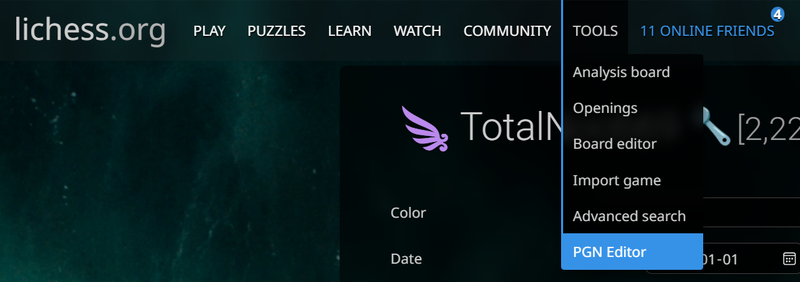
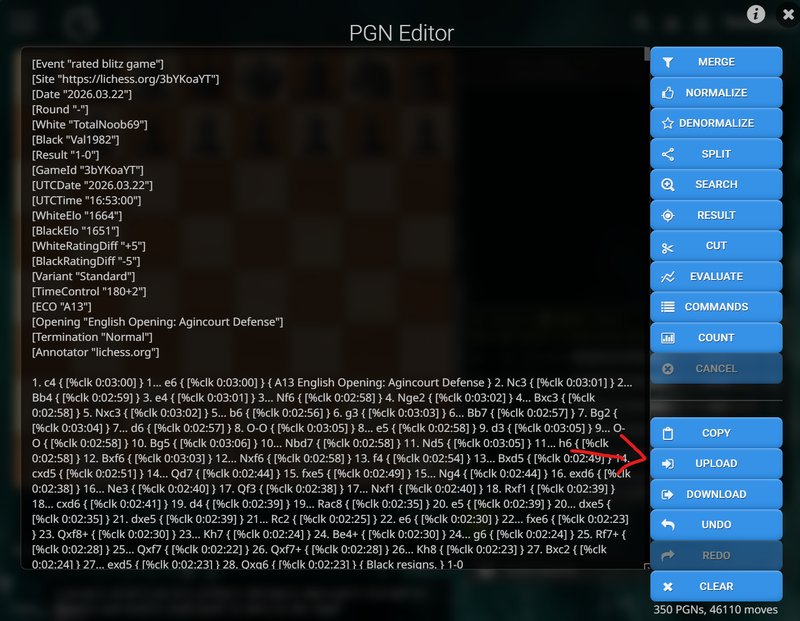
All of your games will be shown in PGN format in the editor.
Let's create the skeleton of the study. Follow these steps:
- Click Search and in the prompt window that opens enter White=<your username> (i.e. White=TotalNoob69)
- this finds all of the games where you played White
- Click Result
- this removes everything that was not found (the games where you played Black)
- Click Cut and in the prompt window enter tags
- this removes the tags from all the games
- Click Cut and in the prompt window enter ply 12
- this removes all the moves after ply (half move) 12
- Click Merge
- this merges all of the games in a single PGN "game" with lots of variations
At this moment you should have all of the moves you played as White in the first 6 moves.
Some tricks
Save your work in other files - you might want to download the resulting PGN in separate files. That's what the Download button does. As some of the steps here require that you repeatedly use the same list of games, you could for example click Download after step 3 to save the tagless list of games of a certain color.
Remove abnormal games - Normally, it should be just one PGN game. However, if you had some weird games, maybe starting from position or something like that, you might get some residuals. You only need the main one. You can select it by clicking Commands and entering select 1 1 for example (select the first game and only one game).
You can now copy the PGN and create your study:
- copy the PGN (or use the Copy button)
- go to the Learn menu in Lichess and choose Study
- click the big green + button that creates a new study
- add a name like "My games" or whatever else
- in the first chapter dialog go to the PGN tab and paste the copied PGN there
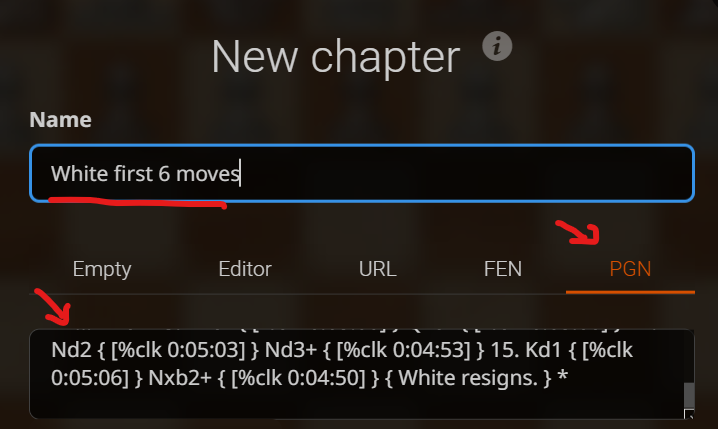
Now you can go through the moves and see what you played. Let's assume you want to only check your repertoire, so you can remove the lines that you played for fun or that don't apply to the situation or you simply don't want to analyse. This will be the White starting chapter.
For each of the remaining lines, you will need a chapter with the actual moves. Follow these steps for any of them:
- go to the end of the line (it mustn't be the sixth move, you can cut to different ply or maybe you shorten some lines to the first 3 moves, for example)
- copy the first part of the FEN (position notation) from the study Share section (so rn2kbnr/pppb1p1p/4q1p1/4p3/8/2N3Q1/PP1PPPPP/R1B1KBNR or rn2kbnr/pppb1p1p/4q1p1/4p3/8/2N3Q1/PP1PPPPP/R1B1KBNR w, not rn2kbnr/pppb1p1p/4q1p1/4p3/8/2N3Q1/PP1PPPPP/R1B1KBNR w KQkq - 2 7)
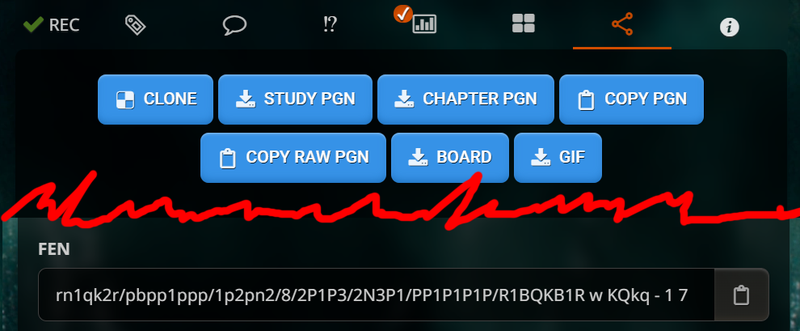
- open a PGN Editor in a new tab
- Upload the file with your games
- click Search and enter White=<your username> (or Upload a file you Downloaded after selecting just your games as White)
- click Result
- click Search and paste the FEN position string
- this will find all the games that reached that position
- click Result
- click Cut and enter tags comments
- this will remove the PGN tags and all comments (you might want to keep eval comments but not clock times, then use tags clock or tags clock eval etc.)
- click Merge
- this will create a big game with all of the moves
- click Normalize
- this will move all lines from a position to the first appearance of that position (don't worry, LT handles transpositions directly in the Analysis/Study move list, so you don't need duplicated lines). This is a recommended, but ultimately optional step.
Now you should have a PGN of all of the moves you played from the ending position of a line you wanted to explore. Hopefully, there are less than 3000 moves, but even if there are more, you can either use Cut with ply to limit the length of the branches or you can use Commands with prompt splitForStudy which will split the PGN into games at most 3000 moves long.
More on the PGN Editor in another of my blog posts.
The next step is to copy the PGN and paste it into a new chapter in your study. Once you do that, you copy the chapter URL from the address bar and add it as a comment in the last position of the line in the starting chapter. LT recognizes links from the same study in the comments so when you click them they just take you there, without opening other windows or refreshing anything.
Repeat the process for the Black games.
More tricks
Once the study chapter is created you will see some buttons under its name when you edit the chapter that can change the name based on the first moves. You might want to use that.
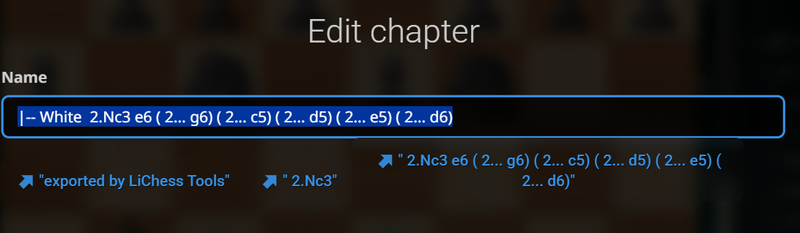
LT adds a functionality called Subchapters, meaning you can create chapters that start with any of the characters \ | - to show them under a collapsible parent.
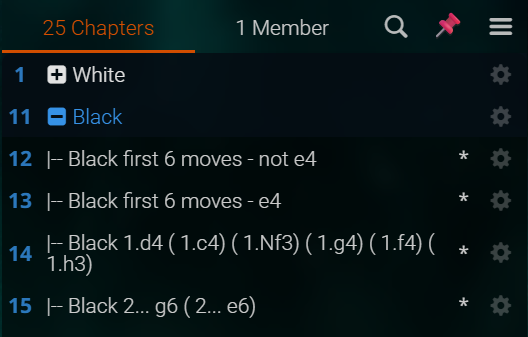
So you can change the names to create a tree structure. Only one level of subchapters is supported at the moment.
Alternately, you could search the games on the pawn structure instead of the position. You just need to use the strange notation I've invented.
Analysing your games
The hard part with analysing any game is that if you use an engine, it will just suggest the boring safe moves and critique any creative attempt for a move. They might show you what the best move in the position is, but why is it best? That is why I recommend a three layer approach to analysis:
- Understand yourself - do NOT use engines, do not look at the Opening Explorer
- this is a very important yet mostly neglected step to improvement. You don't need to see what the best move is, you don't even need to know what you did wrong, you just need to understand why you made that move in the first place. Without finding that out, how can you improve? You are not looking for best moves, but for best thinking patterns.
- Understand others - use Opening Explorer
- you need to find what other people did in the same position and hopefully understand why. The Opening Explorer is a great tool from Lichess, offering you the opportunity to see what millions of people chose to play. You can filter based on time control, rating, look in Master games or in recent games only, and so on. But then LT comes along and makes it even better! The moves in the Explorer are showing the cloud evaluation without you having to start any engine, it shows which moves lead to gambits, it alerts you of moves that score very differently from the computer evaluation - meaning they are candidates for traps, and enhances the information you already get from Lichess.
- Ask the computer gods - use engines
- finally you get to ask the engines what they think. And if you are embarrassed to ask StockFish, which will just piss all over your ideas, did you know you can use your own engines on your own machine inside Lichess? It's not a comfortable system, but it works, so you can leverage powerful GPUs or ask engines like Leela, Maia or Dragon what they would do.
Another great use of Opening Explorer is to select games from yourself and - if they are old enough to be part of the database - you can find the games that reached a position and which moves you played.
The computer analysis is enhanced as well. You can choose up to 10 computer lines with default engines rather than a maximum of 5. You can select to highlight moves common to multiple lines so you can discern plans from computer analysis - I find this very useful to understand the engine suggestions. You can immediately see which moves are winning, neutral or losing.

And there is another nice thing you can do to find out strategies in particular positions. Use another extension called Chessvision.ai. I recommend you disable the integration with Lichess, because it mainly takes space and may even interact badly with LiChess Tools, but you can use it manually in specific positions:
- click the extension button
- click Scan to get the current position (this only works on relatively standard boards and piece sets, if you have them customized, the Scan might fail)
- press the Videos or the Chessable buttons
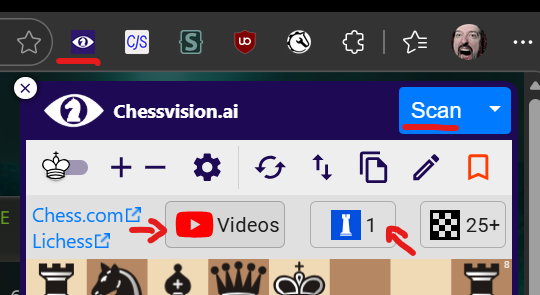
This is not my extension, I just find it very useful to find what people are teaching about the position, so I recommend it.
Another thing you gain from LT is that it enhances the evaluation chart so that it works with local engine evaluation, it supports multiple variations, it shows a lot more metrics than just evaluation and so on. In studies, you will have to request a computer analysis to get the chart to show, but then it will be enhanced by multiple sources of information. It even supports a - very rudimentary - brilliant move algorithm.
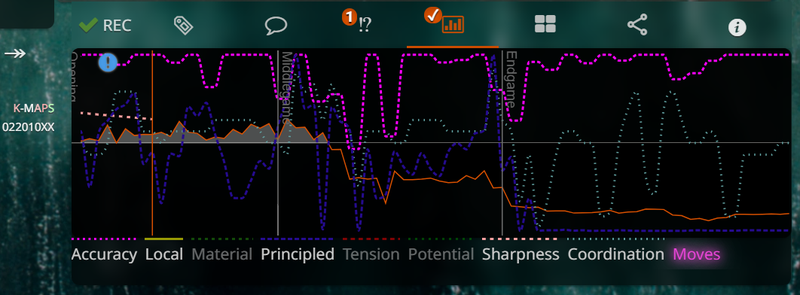
Other tools like K-MAPS analysis and pawn structure display help as well.
Interactivity
One of the great features of Lichess is the interactive lesson study chapters. They allow you to "play" a specific variation and show why some other branches are not preferred. However, this limits chess exploration to just one variation per chapter, 64 maximum per study.
LT gives you the option to interactively explore ALL variations of a study chapter, which allows you to combine all of the moves you prepared into single chapters. There are multiple features there: transposition support, spaced repetition, counting variants and keeping score and so on.
More on how to set this up and use it here: Creating an interactive lesson from your favorite player in minutes
Conclusion
I didn't dwell on the analysis process itself because that's different from person to person. However, LiChess Tools helps a lot with handling large amounts of information and integrating it in the Lichess site to help improve your chess.
The ability to gather one's games and structure them into a single study for review and reference is essential to one's evolution in the game and that is what this post was about.
There is a limit of 10 images per blog post, but check out the multiple links in this one to get to more extensive explanations on what LT can do for you.
Just like Lichess, LiChess Tools is a forever free open source project and is being used by thousands of people already. Help me make it better and let's all grow together!
You may also like
 FM MathiCasa
Chess Football: A Fun and Creative Variant
Where chess pieces become "players" and the traditional chessboard turns into a soccer field TotalNoob69
Emergent behavior in LiChess Tools - search position in chapter
... it's alive, alive, alive, alive! TotalNoob69
The Qc7 variation of Alekhine's Defense, when White annoyingly plays Nc3
... how to still have fun against chess accountants thibault
How I started building Lichess
I get this question sometimes. How did you decide to make a chess server? The truth is, I didn't. ChessMonitor_Stats
Where do Grandmasters play Chess? - Lichess vs. Chess.com
This is the first large-scale analysis of Grandmaster activity across Chess.com and Lichess from 200… CM HGabor